Updated August 2026

Microsoft Teams is where employees already communicate, collaborate, and ask for help. A Microsoft Teams ticketing system turns those support requests into structured, trackable tickets that can be assigned, prioritized, automated, and resolved without losing the context of the original request.
But Microsoft Teams itself is not a complete IT ticketing system. Organizations that want structured ticket management typically need a dedicated ticketing or help desk application that works with Teams and Microsoft 365.
The right Microsoft Teams ticketing system should make it easy for employees to submit requests, give support teams the tools to manage the entire ticket lifecycle, and automate repetitive work. It should also integrate naturally with the Microsoft 365 environment your organization already uses.
This guide explains what a Microsoft Teams ticketing system is, how Teams can be used for ticketing, what features to look for, and how to choose the right solution for your organization.
What Is a Microsoft Teams Ticketing System?
A Microsoft Teams ticketing system is a help desk or service management solution that allows users and support teams to create, manage, track, and resolve tickets through Microsoft Teams.
Instead of relying on requests buried in Teams chats, emails, or channel conversations, a ticketing system creates a structured record for each request. Tickets can include information such as:
- Requester
- Issue or service request
- Category
- Priority
- Assigned technician
- Status
- Due date
- Service-level agreement (SLA)
- Communications and updates
- Related tickets or tasks
- Resolution information
A Teams ticketing system can also automate processes such as ticket assignment, notifications, escalations, approvals, routing, and reporting.
For employees, the experience can remain simple: submit a request through Teams. For the IT or service team, the request becomes a trackable ticket with ownership, workflow, accountability, and reporting.
Can Microsoft Teams Be Used as a Ticketing System?
Yes, Microsoft Teams can be used as the front end for a ticketing system, but Teams by itself does not provide all the functionality of a full-featured IT help desk.
Organizations can use Teams together with Microsoft 365 tools and third-party applications to create ticketing workflows. For example, a request might begin as a Teams message or form submission and then be converted into a ticket that is assigned to the appropriate support person.
The important distinction is between using Teams for communication about support requests and using Teams as part of a structured ticketing system.
A channel where employees post IT problems may be convenient, but it does not automatically provide:
- Ticket numbers
- Ownership and assignment
- SLA tracking
- Automated escalation
- Ticket prioritization
- Service request workflows
- Knowledge management
- Ticket history
- Reporting and dashboards
- Automated routing
- Structured approvals
A dedicated Microsoft Teams ticketing system adds these capabilities while allowing Teams to remain a familiar user interface.
Does Microsoft Have a Ticketing System?
Microsoft Teams does not include a complete, standalone IT ticketing system comparable to a dedicated help desk platform.
Microsoft 365 provides tools that can be used to build ticketing processes, including Microsoft Teams, SharePoint, Microsoft Lists, Power Automate, and other Microsoft services. These tools can be combined to create custom request and workflow applications.
For organizations with simple requirements, a combination of Microsoft tools may be sufficient.
However, organizations with larger IT support operations often need capabilities beyond a basic form-and-workflow process, including comprehensive ticket management, SLA management, automated routing, knowledge bases, reporting, self-service, and AI-assisted support.
A dedicated Microsoft ticketing solution can provide those capabilities while remaining integrated with the Microsoft 365 environment.
For a deeper look at the Microsoft 365 options, see our guide to whether Office 365 has a ticketing system.
How Does a Microsoft Teams Ticketing System Work?
A typical Microsoft Teams ticketing workflow looks like this:
1. A user submits a request
An employee submits an IT issue or service request through Microsoft Teams, a self-service portal, email, a form, or another supported channel.
2. The request becomes a ticket
The request is captured as a structured ticket rather than remaining buried in a conversation.
3. The ticket is categorized and prioritized
The system can categorize the request and determine its priority based on the type of issue, department, requester, keywords, or other rules.
4. The ticket is automatically assigned
Routing rules can assign the ticket to the appropriate technician, team, department, or queue.
5. Workflows automate the process
Automated workflows can send notifications, request approvals, escalate overdue tickets, update users, and perform other repetitive tasks.
6. The support team resolves the ticket
Technicians can communicate with the requester, add work notes, attach information, update the status, and document the resolution.
7. The ticket is closed and reported
Once the request is resolved, the ticket can be closed and included in reports measuring response times, resolution times, SLA performance, workload, and other service metrics.
This process provides much greater visibility than relying on Teams messages or email alone.
What Should You Look for in a Microsoft Teams Ticketing System?
Not every application described as a Teams ticketing system provides the same capabilities. When evaluating solutions, focus on how well the system manages the entire support process—not simply whether it has a Teams integration.
1. Native Microsoft Teams integration
Teams integration should go beyond sending notifications into a channel.
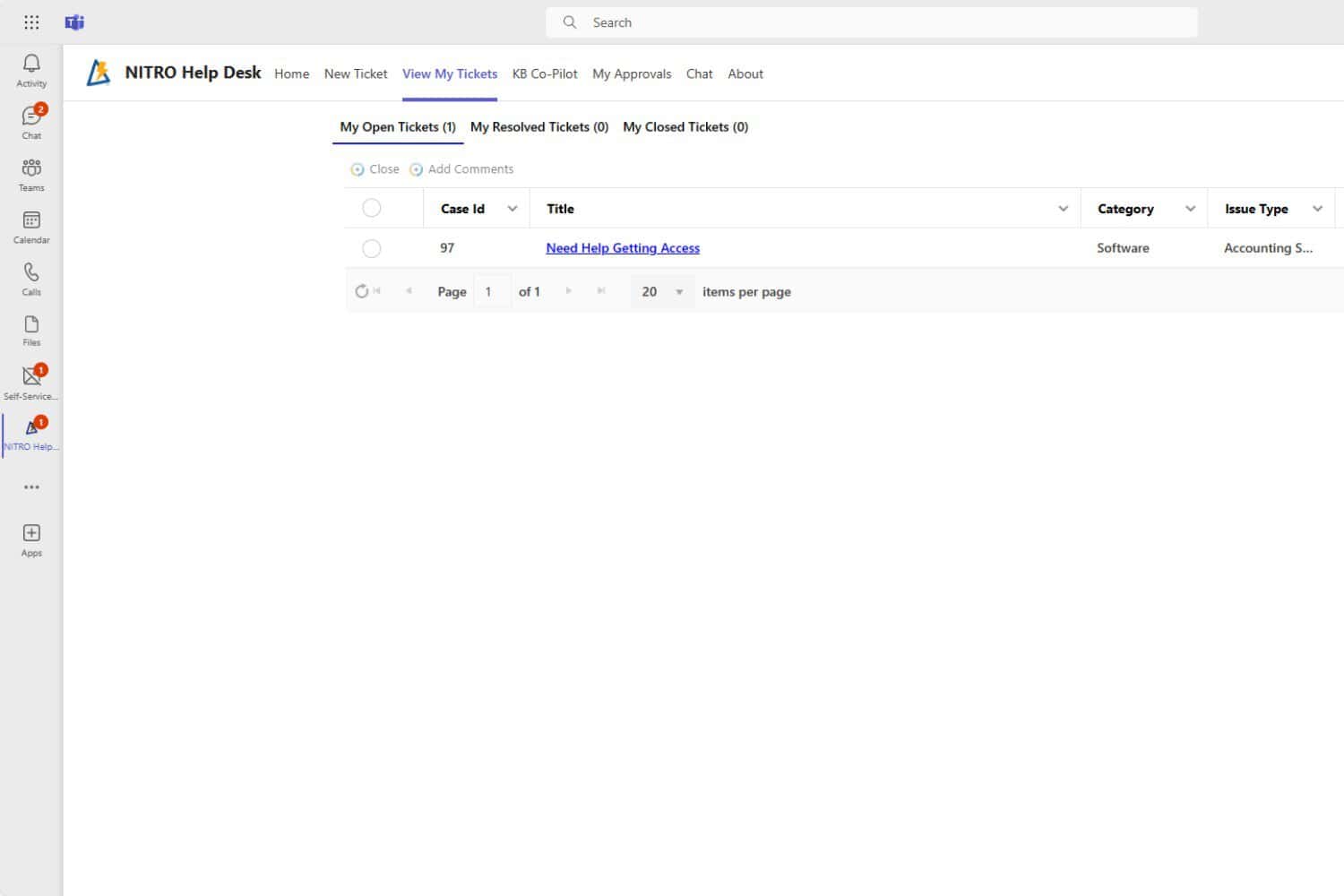
Look for the ability to create or manage tickets from within Teams and provide employees with a familiar experience for submitting and checking requests.
Ideally, the ticketing system should integrate with the Microsoft environment rather than treating Teams as an unrelated add-on.
2. Multiple ticket submission channels
Employees do not always submit requests in the same way.
A strong ticketing system should support multiple intake channels, such as:
- Microsoft Teams
- Web or self-service portal
- Forms
- Mobile devices
All requests should ultimately flow into a central ticketing system so support teams do not have to monitor multiple disconnected queues.
3. Automated ticket routing
Manual ticket assignment creates unnecessary work and can delay responses.
Look for automated routing based on criteria such as:
- Request category
- Department
- Location
- Issue type
- Priority
- Technician workload
- Skills or support group
Automatic routing helps ensure that requests reach the right person or team faster.
4. SLA management and escalation
Service-level agreements help organizations establish measurable expectations for response and resolution.
A Microsoft Teams ticketing system should be able to track SLA commitments and automatically escalate tickets when deadlines are approaching or have been exceeded.
Useful SLA capabilities include:
- Response-time targets
- Resolution-time targets
- Priority-based SLAs
- Business-hour calculations
- Escalation notifications
- SLA reporting
5. Workflow automation
A ticketing system should reduce manual work rather than simply digitize it.
Look for workflow automation that can:
- Assign tickets
- Send notifications
- Escalate requests
- Request approvals
- Update ticket fields
- Create tasks
- Trigger follow-up actions
- Notify users when ticket status changes
The more repetitive work the system can handle automatically, the more time your support team can spend solving problems.
6. Self-service and knowledge management
Not every issue needs a technician.
A knowledge base can allow employees to find answers to common questions themselves. A self-service experience can also allow users to submit requests, check ticket status, and find relevant information without contacting the help desk directly.
AI-powered knowledge capabilities can take this further by helping users find relevant answers using natural-language questions.
7. Reporting and dashboards
A ticketing system should give managers visibility into the performance of the service desk.
Important metrics can include:
- Open tickets
- Closed tickets
- Tickets by category
- Tickets by technician
- Average response time
- Average resolution time
- SLA compliance
- Overdue tickets
- Ticket volume trends
- Customer satisfaction
Reporting is especially important when IT leaders need to demonstrate service performance or identify bottlenecks.
8. AI-assisted ticket management
AI is becoming an increasingly important capability in modern ticketing systems.
Useful AI capabilities can include:
- Ticket summarization
- Automatic categorization
- Priority recommendations
- Intelligent routing
- Suggested knowledge articles
- Suggested responses
- User self-service
- First-response assistance
The important question is not whether a product says it has AI. Ask what the AI actually does within the ticket lifecycle and whether it reduces work for users and technicians.
9. Microsoft 365 and SharePoint integration
For organizations already invested in Microsoft 365, integration with the existing Microsoft environment can be a major advantage.
Consider how the ticketing system works with:
- Microsoft Teams
- SharePoint
- Microsoft 365
- Outlook
- Microsoft Entra ID
- Power BI
- Power Automate
A solution that fits naturally into your existing Microsoft environment as a native M365, Teams, and SharePoint ticketing system can reduce the need for additional platforms and simplify user adoption.
10. Security and deployment options
Organizations with sensitive data or strict compliance requirements should also evaluate where ticket data is stored and how the solution is deployed.
Depending on your organization’s requirements, you may need options such as:
- Microsoft 365 cloud
- Customer-hosted Azure
- Microsoft GCC
- Microsoft GCC High
- SharePoint Server on-premises
- Dedicated environments
- Air-gapped deployments
Security, permissions, data location, authentication, and compliance should be evaluated before selecting a ticketing platform.
Microsoft Teams Ticketing System vs. Using Teams Alone
Teams is an excellent collaboration platform, but a Teams conversation is not the same thing as a managed support ticket.
| Capability | Microsoft Teams alone | Dedicated Teams ticketing system |
|---|---|---|
| Chat and collaboration | Yes | Yes |
| Structured tickets | Limited | Yes |
| Ticket assignment | Limited/manual | Automated |
| Ticket priorities | Limited | Yes |
| SLA management | No dedicated capability | Yes |
| Automated escalation | Limited | Yes |
| Ticket history | Conversation-based | Structured ticket history |
| Knowledge base | Limited | Yes |
| Self-service | Limited | Yes |
| Reporting | Limited | Comprehensive |
| Workflow automation | Through additional tools | Built into ticketing workflows |
| AI-assisted support | Varies | Depends on solution |
| Multi-channel intake | Limited | Teams, email, portal and other channels |
For a small team with a low volume of requests, Teams and Microsoft 365 tools may be enough.
For a growing IT organization that needs accountability, automation, reporting, and predictable service delivery, a dedicated ticketing system is usually a better fit.
Microsoft Teams Ticketing System vs. Microsoft Lists and Power Automate
Microsoft Lists and Power Automate can be used to build custom request-tracking solutions.
This approach can work well when an organization has relatively simple requirements and has the internal resources to design, maintain, and improve the application.
However, building a complete help desk involves more than creating a list of requests.
A mature ticketing system may need to address:
- Ticket lifecycle management
- Assignment and routing
- SLAs
- Escalations
- Notifications
- Approvals
- Knowledge management
- Self-service
- Email integration
- Reporting
- User permissions
- Mobile access
- AI-assisted support
- Multiple service types
Before building your own system, compare the long-term maintenance requirements of a custom Microsoft 365 solution with the cost and capabilities of a dedicated Microsoft Teams ticketing application.
What Are the Benefits of a Microsoft Teams Ticketing System?
A well-designed Teams ticketing system can provide several benefits.
Keep users in Microsoft Teams
Employees can submit requests through an application they already use every day instead of learning an unfamiliar support platform.
Reduce missed requests
Requests become structured tickets instead of getting buried in chat messages or email threads.
Automate repetitive work
Routing, notifications, escalations, approvals, and other processes can happen automatically.
Improve response times
Automatic assignment and prioritization help support teams respond to the right requests faster.
Increase visibility
Managers can see ticket volume, workloads, SLA performance, and resolution trends.
Improve self-service
Knowledge bases and AI-assisted support can help employees resolve common issues without opening a ticket.
Extend beyond IT
The same ticketing and workflow platform can support HR, facilities, purchasing, customer service, and other departments.
How to Choose the Right Microsoft Teams Ticketing System
The best Microsoft Teams ticketing system depends on your organization’s requirements.
Before selecting a solution, ask:
- Can employees submit tickets directly through Microsoft Teams?
- Can Teams messages be converted into structured tickets?
- Can users also submit requests by email or through a portal?
- Can tickets be automatically routed and assigned?
- Does the system support SLAs and escalations?
- Can workflows automate approvals and repetitive tasks?
- Does it provide self-service and a knowledge base?
- What AI capabilities are actually included?
- Can managers build useful reports and dashboards?
- Does it integrate with Microsoft 365 and SharePoint?
- Where is ticket data stored?
- Does it support your organization’s security and compliance requirements?
- Can the platform support other departments beyond IT?
- How much customization and administration will the solution require?
- What will the total cost be over several years?
The most important consideration is not simply whether a product has a Teams app. Evaluate whether it can support your entire service management process.
NITRO Help Desk: A Microsoft Teams Ticketing System Built on Microsoft 365
NITRO Help Desk is a Microsoft-native help desk and ticketing solution designed for organizations that use Microsoft 365, SharePoint, and Teams.
NITRO Help Desk provides a structured ticketing environment while allowing employees to submit and manage support requests through Microsoft Teams.
Key capabilities include:
- Microsoft Teams ticketing
- Two-click conversion of Teams messages into tickets
- Ticket routing and assignment
- SLA management
- Automated workflows
- Self-service
- Knowledge management
- Email-based ticket submission
- Reporting and dashboards
- AI-assisted support
- Mobile access
- Microsoft 365 and SharePoint integration
NITRO Help Desk can also support organizations with more demanding deployment requirements, including Microsoft 365, dedicated Azure, GCC, GCC High, SharePoint Server on-premises, and air-gapped environments.
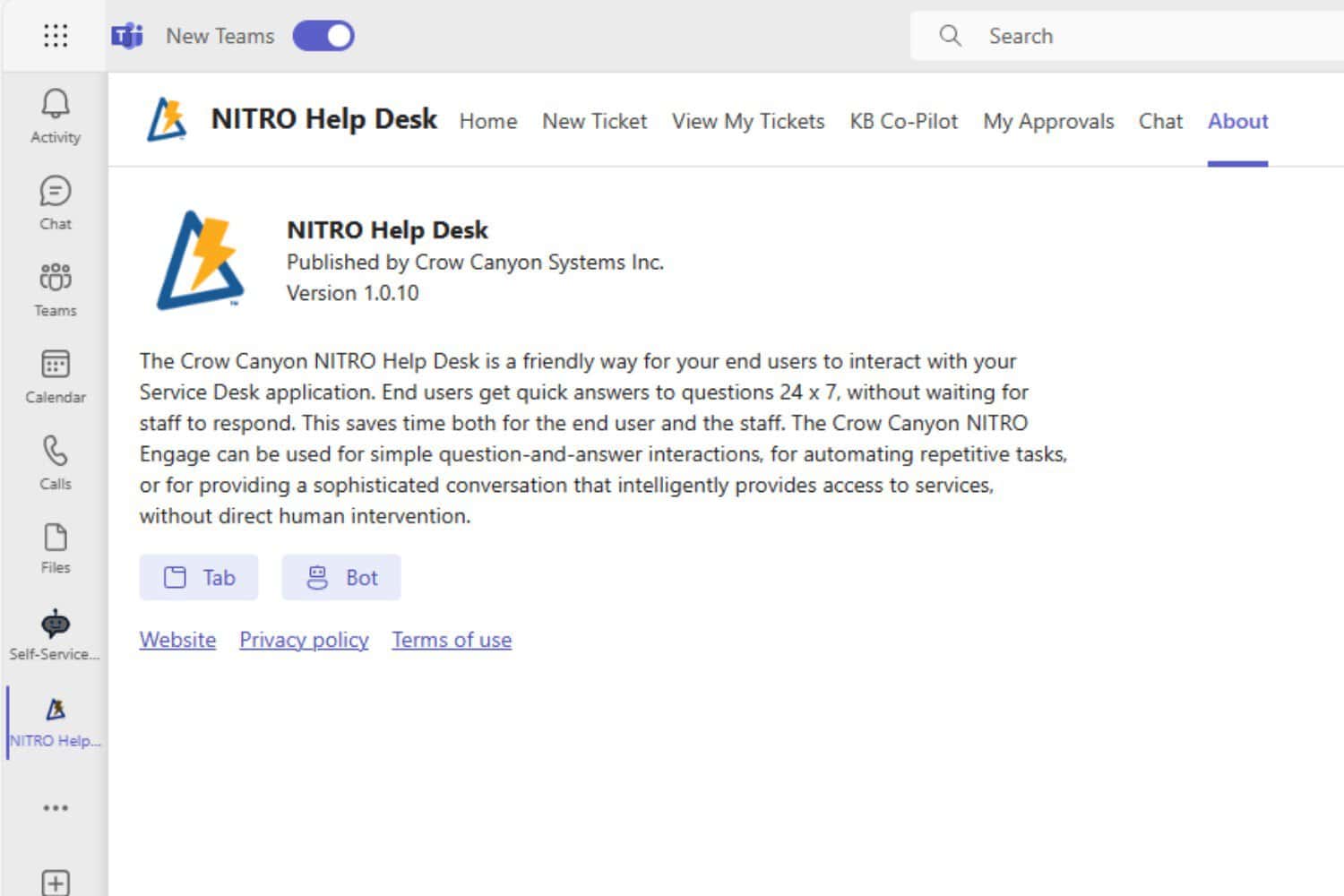
Because NITRO Help Desk for Microsoft Teams is built around the Microsoft ecosystem, organizations can provide a Teams-based help desk experience without requiring employees to adopt an entirely separate collaboration platform. NITRO’s Teams capabilities include submitting tickets and using a Teams-based interface for support interactions.
Ready to Improve IT Support in Microsoft Teams?
If your organization already relies on Microsoft 365 and Teams, a Microsoft Teams ticketing system can provide the structure and automation needed to turn scattered support requests into a measurable, efficient service process.
Explore NITRO Help Desk or schedule a demo to see how NITRO Help Desk can provide ticketing, automation, self-service, and AI-powered support within your Microsoft environment.