| Quick answer
Can you convert InfoPath forms? Yes, but converting an existing InfoPath form is generally a rebuild rather than a simple file conversion. The process involves recreating the form’s fields, business rules, validation, data connections, permissions, and associated workflows on a supported platform. |
In this guide, you’ll learn how to convert InfoPath forms step by step, what happens to existing submission data, how to handle workflows and approvals, and how to test the converted form before moving users off InfoPath.
Key takeaways
- InfoPath is retired across Microsoft 365, so running unsupported forms is a risk worth closing out.
- A successful conversion is a functional rebuild, not a file format conversion.
- A full conversion has to account for conditional logic, lookups, validation, permissions, and approval routing.
- Legacy XML submissions need a plan of their own, kept as a read-only archive or exported.
- Validate every converted form by testing a real past submission field by field.
Is InfoPath Still Supported?
No. InfoPath has reached end of life, with no grace period, so any form still in use should be moved to a supported platform.
| Event | Date |
|---|---|
| InfoPath 2013 extended support ended | July 14, 2026 |
| InfoPath Forms Services removed from SharePoint Online | July 14, 2026 |
| InfoPath Forms Services support ended in SharePoint on-premises | July 14, 2026 |
Microsoft’s lifecycle page for InfoPath 2013 confirms the retirement date and recommends moving forms and workflows to supported Microsoft 365 solutions.
What Converting an InfoPath Form Truly Involves
Recreating input fields is straightforward. But a real conversion has to deal with the logic and structure underneath the form:
- Business Logic & Calculations: Dynamic formulas, default values, and rule triggers.
- Validation & Formatting: Conditional field requirements and pattern checks.
- Workflows & Approvals: Task routing, multi-stage sign-offs, and automated email or Teams alerts.
- Data Connections: External database lookups and cascading dropdowns.
- Security & Views: Form view switching, section hiding, and role-based field permissions.
- Historical Records: Strategy for legacy XML data files, separate from the form template itself.
That is why converting from InfoPath is a rebuild, not a file conversion.
Can InfoPath Forms Be Converted Automatically?
No. There is no universal, one-click tool that converts an InfoPath template and its workflows into a finished solution. Simple survey-style forms can be rebuilt quickly. Forms with nested rules, lookups, and multi-stage approvals need a structured assessment and manual configuration.
7-Step InfoPath Conversion Framework
To keep disruption low, work through the conversion in this order.
- Inventory every form and the workflow it feeds. Catalog the forms in use across departments. The Microsoft 365 Assessment tool can scan a tenant for InfoPath usage and report which forms exist and how heavily they are used. Note down the owner, the submission frequency, the linked libraries, and the connected workflows. Retire anything obsolete or duplicated.
- Prioritize by business impact and complexity. Rank each form by how critical and how complex it is. Prioritizing high-impact, rule-heavy forms early surfaces edge cases and technical constraints before a full-scale rollout.
- Document functional specifications. Map out the requirements:
- Data fields, field types, and list schemas
- Conditional visibility rules, such as “hide Section C if Question 2 is No”
- Calculations and required validations
- Approvals, routing, and notifications
The goal is a functional specification, not a visual copy.
- Rebuild the form and business logic. With the plan in hand, establish the underlying list structure, construct the visual layout, then layer on the business logic using your replacement platform. Replicate the business requirements while stripping out legacy workarounds previously required by InfoPath’s engine, like extra fields or hidden sections added only to force a rule to work.
- Rebuild associated workflows. Treat the form and its workflow as a single system. Map the workflow triggers, task assignees, conditional branching, rejection pathways, and automated notifications on your target platform.
- Test against historical submissions. Take completed submissions from prior quarters, enter identical data into the new form, and compare output values, calculations, and records field by field.
- Deploy and archive legacy assets. Roll out the replacement, deliver user guidance, and set a cut-off date. Keep legacy XML submissions as a read-only archive or export them.
Worked Example: Converting an InfoPath Form to a NITRO Form
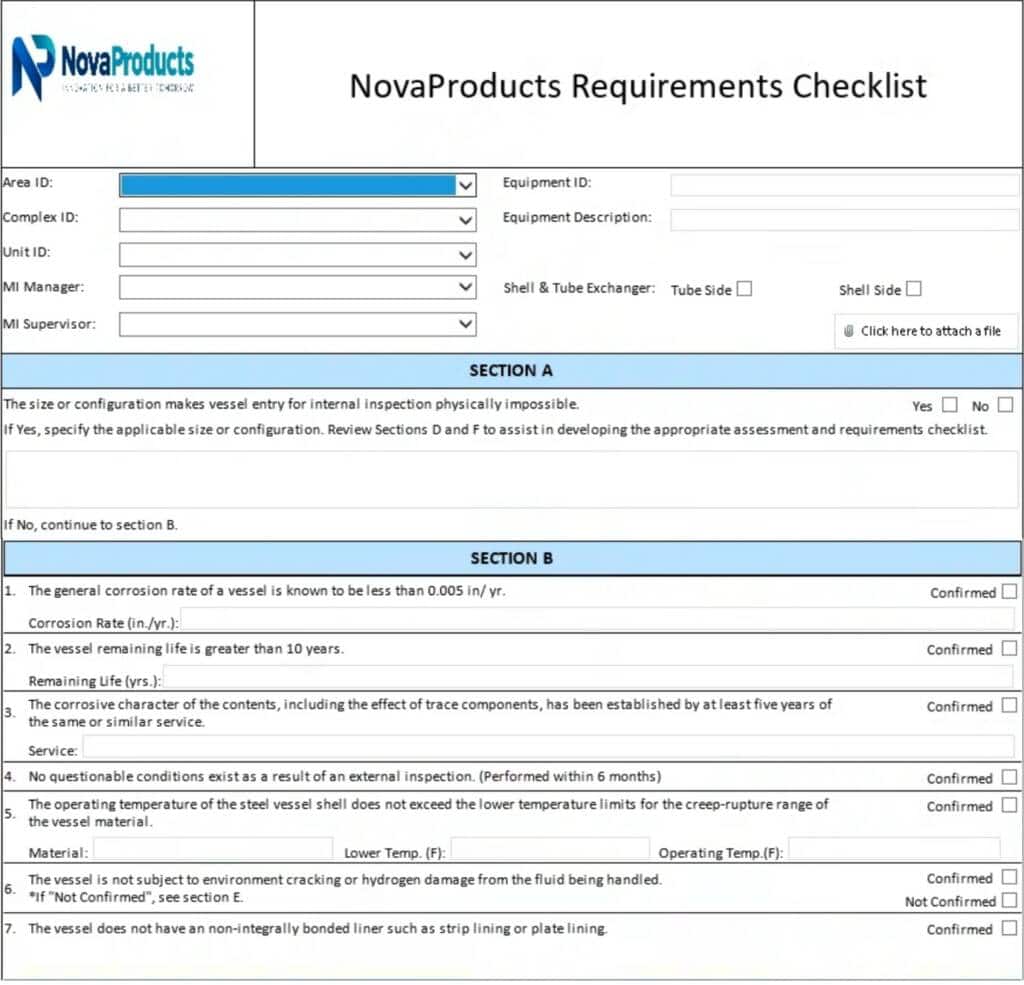
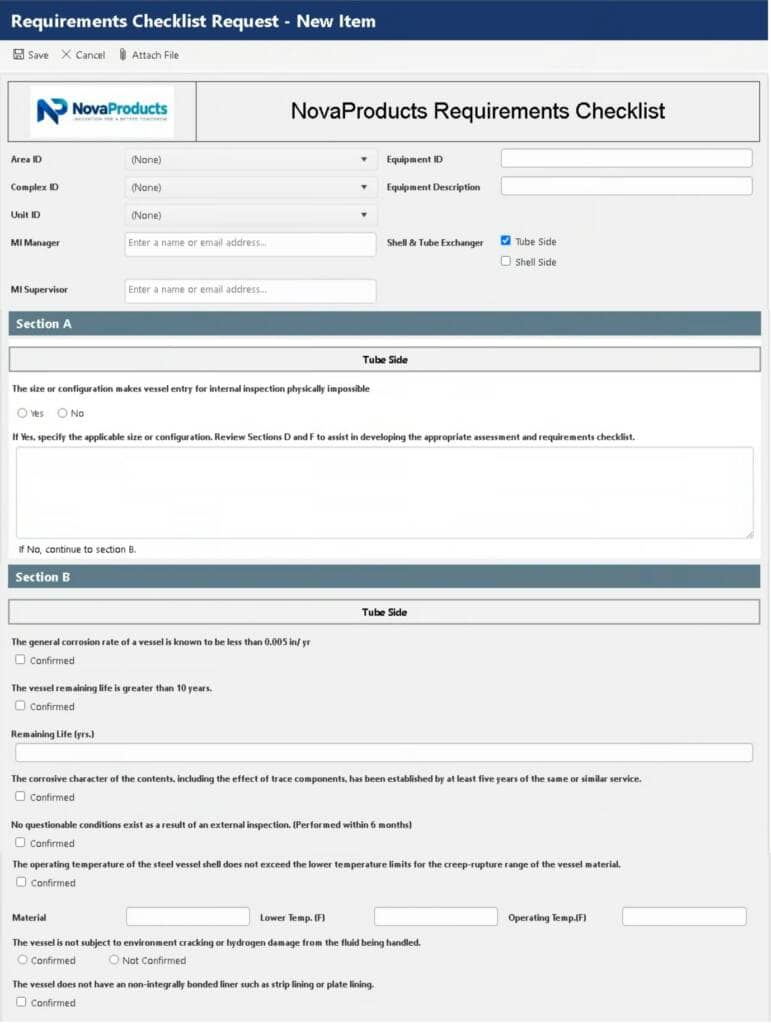
Here is a complex engineering checklist Crow Canyon rebuilt in NITRO Forms, the form designer in NITRO Studio. Company details have been anonymized to “NovaProducts.”
You can also watch a short demo of the same kind of conversion below.
The original form and the rebuild
The original form had header fields across multiple columns, six technical evaluation sections (A through F), specialist and manager sign-off blocks, and submissions saved as XML files. The rebuild keeps the same sections, but instead of saving to XML files it becomes a SharePoint list form, with each submission stored as a list item in your own tenant.
What mapped to what
| InfoPath element | NITRO Forms equivalent | Action | How it is done |
|---|---|---|---|
| Header, logo, and title | Line/HTML control with placeholders (%%[Status]%%, %%[ID]%%) | Rebuild | Logo and title placed with status and ID placeholders |
| Multi-section layout | Multi-column sections | Rebuild | Sections set to display on desktop and mobile |
| Full-question labels | Display name override on a short internal column | Rebuild | List column stays short, full question shows on the form |
| User details entered by hand | User Information Auto-Fill | Enhance | User fields like name, email, phone, and job title fill in from the logged-in user |
| Field set-value rules | Form Event Actions on load or column change | Rebuild | Field logic runs from event triggers instead of inline rules |
| Required-field checks | Column Validations with a condition and message | Rebuild | Validation message shown based on form state |
| Role and state permissions | Column Permissions, read-only or hide | Enhance | Field access by user group and condition |
| Approval routing and sign-off | A workflow that runs after the form is submitted | Redesign | Replaces the older SharePoint approval workflow |
| XML document storage | SharePoint list items | Redesign | Moves from XML files to query able list rows |
Technical Configuration Deep Dive
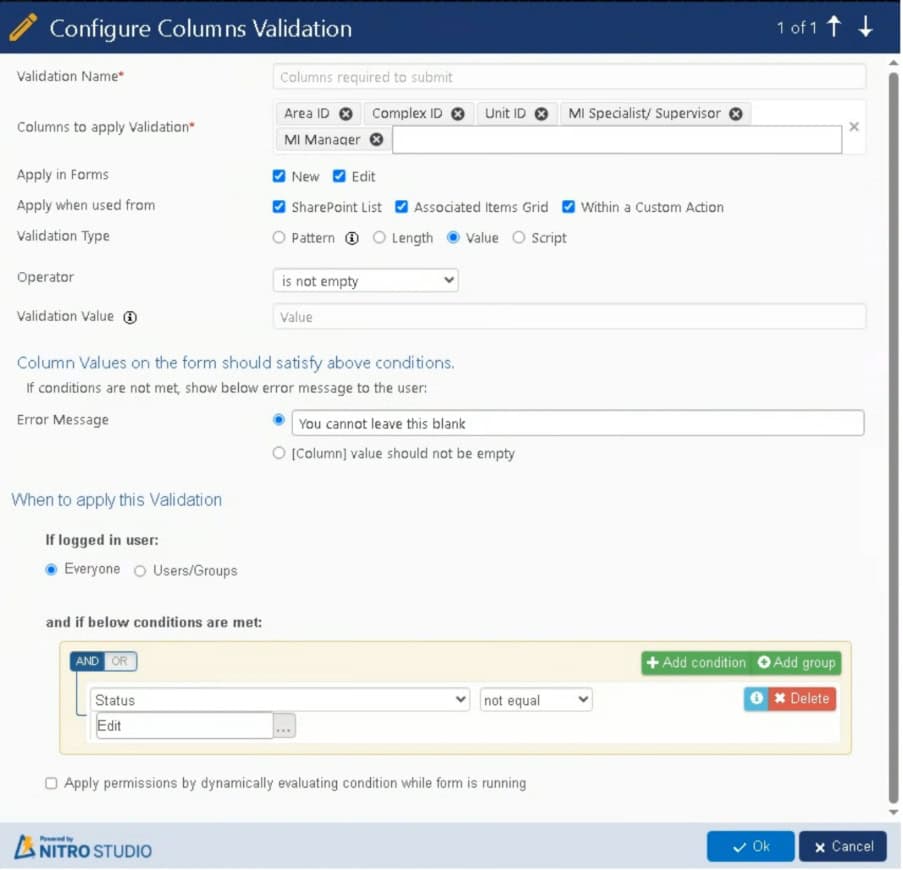
Required fields. In InfoPath these were validation rules buried in field properties. In NITRO they are set as a Column Validation: choose the columns that must be filled in, set the condition, and write the message the user sees. Here the core identifiers (Area ID, Complex ID, Unit ID) cannot be left blank, and the form shows “You cannot leave this blank” if they are.
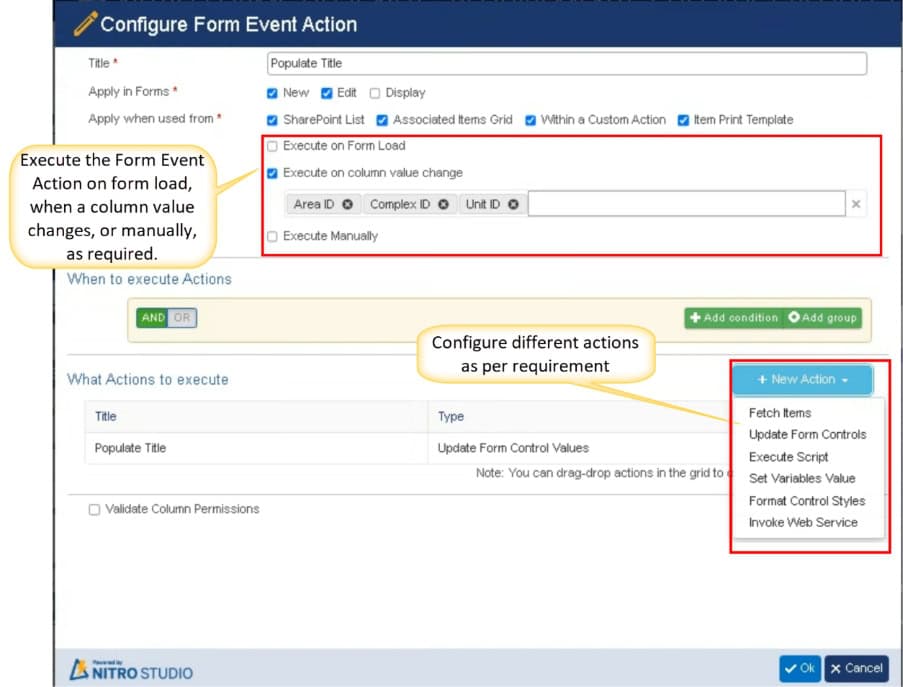
Rules that react to input. InfoPath action rules become Form Event Actions. Each one can run when the form loads, when a column value changes, or on demand, and it can update fields, run a script, or call a service. This one runs whenever the area, complex, or unit changes.
Architectural Adjustments: What Changed
Because the data now lives in a SharePoint list, it can be filtered, sorted, and reported on like any other list. And because the approval runs as a workflow after submission, the review and sign-off no longer depend on the older SharePoint approval process.
Choosing an InfoPath Replacement
There is no single replacement that fits every organization. The right choice depends on how complex the forms and workflows are, your development resources, and your governance needs.
- Power Apps can suit teams already invested in the Power Platform with the resources to build and maintain apps.
- SharePoint forms work for simple list items with basic input and no complex rules.
- Microsoft Forms is built for surveys and quizzes. Microsoft is clear that Microsoft Forms is not an InfoPath replacement.
- NITRO Studio is a no-code/low-code option for teams that want to rebuild complex forms, rules, and workflows natively on SharePoint.
For a full comparison, see our InfoPath end-of-life migration guide and our InfoPath replacement page.
Should You Rebuild As-Is or Redesign?
A conversion does not always mean an exact recreation.
| Rebuild as-is when | Redesign when |
|---|---|
| The process is strictly audited or regulated | The process has redundant, manual workarounds |
| Users need an identical data entry interface | Users abandon the form or make entry errors |
| The existing logic already works well | Approvals can be streamlined through Teams |
| Precise data schemas are required for compliance | Obsolete fields and outdated rules have built up |
How Long Does Converting an InfoPath Form Take?
Timing depends on complexity, not field count. A simple form can be rebuilt quickly. A form with conditional logic, lookups, and approval workflows takes longer. A large environment with many forms may run over weeks or months. The main factors are the number of forms, the complexity of the rules and workflows, the data connections, any custom code, testing needs, and the availability of the people who know the process.
Start Your InfoPath Conversion
Moving off retired InfoPath forms keeps your processes stable and supported across Microsoft 365. A successful conversion starts with understanding the business process behind the form, not just copying the visible fields. NITRO Studio provides a no-code/low-code way to rebuild InfoPath forms and workflows within Microsoft 365, Teams, and SharePoint.
Deployment supports SharePoint On-Premises, including connected and air-gapped environments, and SharePoint Online in commercial, GCC and GCC High environments. For SharePoint Online, the NITRO engine is Azure-hosted (customer-hosted for GCC and GCC High).
Ready to move off InfoPath? Request a demo or a free migration assessment.