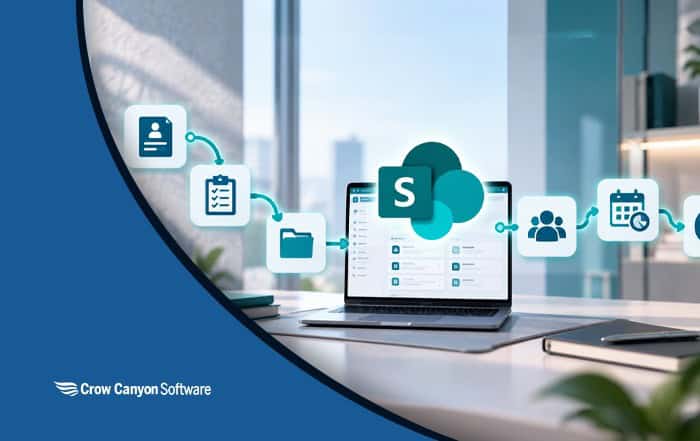
A SharePoint employee onboarding workflow can coordinate the tasks, approvals, documents, and communications required to prepare a new employee for their first day. While Power Automate is one way to automate SharePoint processes, it is not the only option.
Organizations can build an employee onboarding workflow in SharePoint without Power Automate by using native SharePoint capabilities for simple processes or a no-code workflow platform for more complex, cross-department processes.
This guide explains how to build an employee onboarding workflow in SharePoint without Power Automate, what the workflow should include, the different implementation options, and how to create a SharePoint onboarding site for new employees.
Key Takeaways
- A SharePoint employee onboarding workflow can coordinate HR, IT, facilities, finance, and manager tasks in one process.
- Simple onboarding processes may be handled with native SharePoint capabilities.
- Complex onboarding requires capabilities such as conditional routing, parallel tasks, reminders, escalations, and dashboards.
- You can build SharePoint onboarding without Power Automate by using a no-code workflow platform that works with SharePoint.
- A SharePoint onboarding site can give new employees a central location for schedules, policies, training, and other resources.
What Is a SharePoint Employee Onboarding Workflow?
A SharePoint employee onboarding workflow is a structured process that uses SharePoint to coordinate the activities required to prepare a new employee for their start date.
A typical workflow begins when HR or a hiring manager submits an onboarding request. The workflow then creates and assigns tasks to the appropriate departments, tracks completion, sends reminders, manages documents, and provides visibility into the employee's onboarding status.
A complete SharePoint onboarding workflow may include:
- An employee onboarding intake form
- Employee and job information
- IT, HR, facilities, finance, and manager tasks
- Conditional task assignment
- Parallel routing to multiple departments
- Due dates based on the employee's start date
- Automated reminders
- Escalation of overdue tasks
- Document storage in SharePoint
- An onboarding status dashboard
- Completion tracking
- Microsoft 365 and Teams access
- Connections to other business systems when needed
The goal is to make onboarding a coordinated process rather than a collection of emails, spreadsheets, and manually assigned tasks.
Why Build a SharePoint Onboarding Workflow Without Power Automate?
Power Automate is a capable automation tool, but it is not the only way to automate processes associated with SharePoint.
Organizations may choose another approach when they have specific requirements around governance, deployment, workflow complexity, administration, or the tools their business users are comfortable maintaining.
Common considerations include:
- Governance: Some organizations limit who can create or modify Power Platform workflows.
- Data requirements: Regulated organizations may have restrictions around connectors and where workflow data is processed.
- Workflow complexity: A multi-department onboarding process can require conditional routing, task management, reminders, escalations, and dashboards.
- Administration: Business teams may want to maintain workflows without relying on developers or specialized Power Platform resources.
- Existing SharePoint investments: Organizations that already use SharePoint for forms, lists, and documents may prefer to keep the workflow within that environment.
- Legacy migration: Organizations replacing InfoPath, Nintex, or SharePoint Designer workflows may want a modern workflow platform that continues to work with SharePoint.
The question is not whether Power Automate is good or bad. The better question is which approach fits the organization's onboarding process, governance requirements, and long-term maintenance needs?
Need More Than Basic SharePoint Approvals?
If your onboarding process requires conditional task routing, dashboards, reminders, escalations, and business rules, a no-code workflow platform can provide a more complete approach.
Explore NITRO Studio to see how Crow Canyon helps organizations build forms and workflows in SharePoint without Power Automate.
What Does an Employee Onboarding Process Actually Need?
Before building the workflow, map the actual onboarding process.
A common mistake is to focus on individual tasks without considering how those tasks interact. A well-designed onboarding workflow should account for the people involved, dependencies between tasks, conditional requirements, deadlines, documents, and visibility.
1. Employee onboarding intake
Start with a form that captures the information needed to create the onboarding process.
Typical fields include:
- Employee name
- Job title
- Department
- Manager
- Start date
- Location
- Employee type
- Remote or on-site status
- Equipment requirements
- Software requirements
- Special access requirements
Keep the form focused on information that is actually needed to drive the workflow.
2. Department-specific tasks
Break the onboarding process into tasks owned by the appropriate teams.
IT might handle:
- Microsoft 365 account setup
- Computer and equipment
- Software access
- Security groups
- Teams access
- Other application access
HR might handle:
- Employee records
- Benefits enrollment
- Required forms
- Policies
- Employee documentation
Facilities might handle:
- Workspace
- Building access
- Badge
- Equipment at the employee's location
The hiring manager might handle:
- First-week schedule
- Team introductions
- Training plan
- Role-specific preparation
The exact tasks will vary by organization.
3. Parallel task routing
Independent tasks should generally be able to proceed at the same time.
For example, IT should not necessarily have to finish an account setup task before HR can begin benefits-related work. If tasks are independent, routing them in parallel can reduce unnecessary delays.
The workflow should identify which tasks are:
- Always required
- Conditional
- Dependent on another task
- Assigned to a specific person
- Assigned to a department or role
4. Conditional workflow rules
Not every employee needs the same onboarding process.
A remote employee may not need a physical workspace. A contractor may have different HR requirements. An employee in a particular department may need access to specialized applications.
The workflow should create or assign tasks based on the information submitted in the onboarding request.
For example:
- If employee is remote → create remote equipment tasks
- If employee is a contractor → use contractor onboarding tasks
- If department is Sales → create CRM access task
- If location is Office A → create building access task
This prevents teams from having to work through irrelevant checklists.
5. Due dates, reminders, and escalations
Set task deadlines based on the employee's start date.
For example:
- IT equipment due before the start date
- Manager preparation due before the employee's first day
- HR tasks due by the employee's start date
The workflow can then send reminders as deadlines approach.
For overdue tasks, create an escalation or step-up process so that the responsible manager or other designated person knows when work is late.
This is important because assigning a task is not the same as managing the task through completion.
6. Status tracking and dashboards
HR and other stakeholders should be able to see the status of onboarding without asking every department for an update.
A useful dashboard might show:
- Employees currently onboarding
- Upcoming start dates
- Completed onboarding
- Open tasks
- Overdue tasks
- Tasks by department
- Tasks assigned to specific employees
- Overall onboarding status
For example:
Three employees are currently onboarding. Two are on track and one has overdue IT tasks.
That kind of visibility is much more useful than searching through email threads.
7. Document management
SharePoint can also provide the document management layer for onboarding.
Depending on the organization's requirements, this might include:
- Employee forms
- Policies
- Training documents
- Welcome materials
- Required documentation
- Role-specific resources
Sensitive employee information should be protected through appropriate SharePoint permissions and organizational data-handling policies.
What SharePoint Lists Are Needed for Employee Onboarding?
The exact SharePoint architecture will depend on the organization's requirements, but separating the employee onboarding record from individual onboarding tasks can make the workflow easier to manage.
Employee Onboarding List
The primary onboarding list could contain fields such as:
| Field | Purpose |
| Employee Name | Identifies the new employee |
| Job Title | Determines role-specific requirements |
| Department | Determines department-specific tasks |
| Manager | Identifies the responsible manager |
| Start Date | Drives task deadlines |
| Location | Determines location-specific tasks |
| Employee Type | Distinguishes employees, contractors, and other categories |
| Remote/On-site | Determines workspace and equipment requirements |
| Status | Tracks overall onboarding progress |
Onboarding Tasks List
A separate task list can track the individual activities associated with each onboarding record.
Possible fields include:
| Field | Purpose |
| Task | Defines the activity |
| Employee | Connects the task to the onboarding record |
| Department | Identifies the responsible team |
| Assigned To | Identifies the task owner |
| Due Date | Establishes the deadline |
| Status | Tracks task progress |
| Completion Date | Records when the task was completed |
| Escalation Status | Tracks overdue or escalated work |
SharePoint Document Library
A SharePoint document library can store onboarding-related documents and resources while keeping them associated with the onboarding process.
This structure separates the employee record, the individual work items, and the documents supporting the process.
How to Build an Employee Onboarding Workflow in SharePoint
Once the process and SharePoint structure are defined, you can build the workflow.
Step 1: Design the onboarding intake form
Create a form for HR, recruiters, or hiring managers to submit a new employee onboarding request.
Include the information needed to determine which tasks the employee requires.
At a minimum, capture:
- Name
- Role
- Department
- Manager
- Start date
- Location
- Employee type
- Remote or on-site status
- Equipment and access requirements
Avoid collecting information that does not affect the onboarding process.
Step 2: Create the employee onboarding record
When a new request is submitted, create the corresponding employee onboarding record in SharePoint.
This record becomes the central source of information for the onboarding process.
Step 3: Create the required onboarding tasks
Use the information in the employee record to determine which tasks should be created.
For example, every new employee might receive HR and manager tasks, while only certain employees receive facilities, specialized software, or contractor-specific tasks.
Step 4: Route tasks to the appropriate people
Assign each task to the appropriate team or individual.
Independent tasks should run in parallel where possible.
This allows HR, IT, facilities, finance, and the hiring manager to work on their responsibilities at the same time rather than waiting for unrelated tasks to finish.
Step 5: Set task deadlines
Use the employee's start date to calculate appropriate due dates.
For example, equipment preparation may need to be completed before the employee arrives, while some orientation activities can be completed on or after the start date.
Step 6: Add reminders and escalations
Configure reminders for approaching deadlines and escalation rules for overdue work.
A useful escalation process might be:
- Task assigned to the owner
- Reminder before the due date
- Reminder on the due date
- Escalation after the task becomes overdue
The exact timing should reflect the organization's onboarding requirements.
Step 7: Build the onboarding dashboard
Create SharePoint views or dashboards that allow HR and managers to monitor onboarding activity.
At a minimum, provide visibility into:
- Open onboarding records
- Upcoming start dates
- Completed tasks
- Pending tasks
- Overdue tasks
- Tasks by department
Step 8: Connect documents to the onboarding process
Store appropriate onboarding documents in SharePoint document libraries and apply the permissions required for employee information.
Do not assume that every onboarding document should be accessible to every new employee. Sensitive HR or employee records require appropriate access controls.
Step 9: Test real-world scenarios
Do not test only the standard employee onboarding scenario.
Test cases such as:
- Remote employees
- Contractors
- Employees changing departments
- Managers who are unavailable
- Employees requiring specialized software
- Different office locations
- Missing or incomplete information
- Tasks that become overdue
Edge cases are often where workflow design problems become visible.
What Are the Three Ways to Build SharePoint Onboarding Without Power Automate?
There are three practical approaches to consider.
| Approach | Best for | Parallel routing | Conditional tasks | Dashboards | New builds? |
| Native SharePoint capabilities | Simple processes and approvals | Limited | Limited | Basic | Yes |
| SharePoint Designer | Maintaining existing legacy workflows | Depends on existing workflow | Depends on existing workflow | Depends on existing workflow | No |
| No-code SharePoint workflow platform | Complex, multi-step onboarding | Yes | Yes | Yes | Yes |
Approach 1: Native SharePoint capabilities
Native SharePoint features can work for simple onboarding processes, particularly when the process involves basic lists, documents, and approvals.
This approach can be appropriate when the organization has a small number of onboarding steps and limited automation requirements.
However, more complex onboarding processes can require capabilities such as:
- Conditional task creation
- Parallel routing
- Multiple task owners
- Automated reminders
- Escalations
- Custom forms
- Dashboards
- Complex business rules
At that point, basic SharePoint capabilities may not provide everything the process requires.
Approach 2: Existing SharePoint Designer workflows
SharePoint Designer is a legacy workflow technology rather than a recommended approach for new workflow development.
Organizations that already have SharePoint Designer workflows in production may need a migration strategy as Microsoft retired the legacy workflow infrastructure.
If you are replacing existing SharePoint Designer workflows, see our SharePoint Designer replacement guide for approaches to modernizing those processes.
External source to add: Link this statement to the appropriate current Microsoft documentation covering the retirement of SharePoint 2010 and 2013 workflows.
Approach 3: A no-code workflow platform for SharePoint
A no-code workflow platform can provide forms, workflow rules, task management, dashboards, and other process automation capabilities while continuing to work with SharePoint.
This approach can be useful for organizations that need to automate multiple business processes and want business analysts or other non-developers to maintain those workflows.
It can also be a practical option for organizations replacing legacy InfoPath, Nintex, or SharePoint Designer processes.
SharePoint Employee Onboarding Workflow Example
Consider an employee named Alex who is starting in the Sales department and will work remotely.
A hiring manager submits the onboarding form with:
- Employee: Alex
- Department: Sales
- Start date: October 12
- Manager: Alex's hiring manager
- Work arrangement: Remote
- Employee type: Full-time
The workflow evaluates those values and creates the applicable tasks.
IT
- Create Microsoft 365 account
- Configure laptop
- Install required software
- Grant Sales application access
- Configure Teams access
HR
- Complete employee records
- Process benefits
- Provide required documents
- Confirm required policies
Manager
- Prepare first-week schedule
- Identify training
- Schedule introductions
- Confirm role-specific resources
Facilities
Because Alex is remote, physical workspace tasks are not required.
The workflow tracks each task independently and provides HR with an overall view of the onboarding status.
If the IT equipment task becomes overdue, the workflow can notify the responsible person and escalate according to the organization's rules.
This illustrates the difference between a simple onboarding checklist and an actual onboarding workflow: the workflow determines what needs to happen, who needs to do it, when it needs to happen, and what happens when it does not happen on time.
How Do You Build the SharePoint Onboarding Site?
The workflow coordinates the work happening behind the scenes. A SharePoint onboarding site can give the new employee a central place to find information.
These serve different purposes:
The workflow manages the process.
The SharePoint site provides the employee experience.
Together, they can create a more complete onboarding solution.
Step 1: Create the SharePoint site
A SharePoint communication site can be used as an onboarding hub when HR needs to provide information to a broad audience of new employees.
From SharePoint, create a communication site and configure the site's name, branding, navigation, and permissions.
External source to add: Link "SharePoint communication site" to Microsoft's current documentation for creating and using communication sites.
Step 2: Add onboarding content
Useful content may include:
- Welcome message
- Employee handbook
- First-week schedule
- Organizational information
- Benefits information
- Training resources
- Important policies
- Frequently asked questions
- Contact information
Microsoft's employee onboarding site resources can also provide a starting point for organizations designing their own onboarding hub.
External source to add: Link "Microsoft's employee onboarding site resources" to the current Microsoft New Employee Onboarding template/resource page.
Step 3: Configure Quick Links
Use the Quick Links web part to give new employees easy access to the resources they need most.
Potential links include:
- HR portal
- Benefits information
- IT support
- Employee directory
- Training
- Company policies
- Microsoft 365 resources
Keep navigation focused so new employees are not overwhelmed with unnecessary links.
Step 4: Add communication and schedule content
Use SharePoint web parts such as:
- Text
- News
- Events
- Quick Links
These can provide the welcome message, announcements, first-week schedule, and other information new employees need.
Step 5: Review permissions
Review the site's owners, members, and visitors before launch.
Not all onboarding information should necessarily be visible to all employees. Keep sensitive HR information separate from general onboarding resources and apply appropriate permissions.
Step 6: Review the site regularly
An onboarding site should be maintained as policies, contacts, systems, and organizational information change.
Review the content periodically to make sure:
- Links still work
- Policies are current
- Contact information is accurate
- Training resources are current
- Permissions remain appropriate
What Mistakes Should You Avoid When Building a SharePoint Onboarding Workflow?
Automating everything immediately
Start with the most important onboarding activities.
A smaller, well-designed workflow is better than an overly complicated process that attempts to automate every possible task from day one.
Not involving the departments doing the work
HR, IT, facilities, finance, and hiring managers understand the actual onboarding process.
Include them when designing the workflow so the automation reflects how the organization really operates.
Routing every task sequentially
Independent tasks should not have to wait for one another.
Identify which activities can run in parallel.
Failing to create escalation rules
A task that is assigned but never completed can delay the employee's first day.
Include reminders and escalation rules for tasks that have deadlines.
Testing only the standard employee
Test remote employees, contractors, different departments, different locations, unavailable managers, and other scenarios that change the workflow.
Building the workflow without considering the employee experience
Back-office automation is only part of onboarding.
Give new employees a clear place to find their schedule, policies, training information, contacts, and other resources.
Where NITRO Studio Fits
For organizations that need more than basic SharePoint approvals, a no-code workflow platform can provide a way to build and maintain complex processes directly around SharePoint.
NITRO Studio is Crow Canyon's no-code workflow platform for SharePoint and Microsoft 365. It provides tools for building forms, workflows, business rules, task assignments, dashboards, and other process automation capabilities without requiring traditional software development.
For an employee onboarding process, that can mean:
- Building the onboarding intake form
- Creating employee and task records
- Routing tasks to HR, IT, facilities, finance, and managers
- Applying conditional business rules
- Setting due dates
- Sending reminders
- Escalating overdue tasks
- Tracking onboarding status
- Building dashboards for HR and management
NITRO Studio can also be considered when an organization is modernizing workflows built with technologies such as InfoPath, Nintex, or SharePoint Designer.
The right approach depends on the complexity of the process and the organization's technical, governance, and deployment requirements.
Real-World Example: Air Wisconsin
Air Wisconsin provides an example of the broader challenge organizations can face when modernizing SharePoint-based forms and workflows.
Its IT team needed to replace more than 400 InfoPath forms and workflows. The organization selected NITRO Studio because it could support its SharePoint environment while allowing business analysts to maintain processes in a centralized platform.
You can review the full Air Wisconsin case study to learn more about the organization's InfoPath replacement project.
Frequently Asked Questions
How do I create an employee onboarding workflow in SharePoint?
Start by mapping the onboarding process, then create the SharePoint data structure, intake form, department-specific tasks, workflow rules, deadlines, reminders, escalations, and status views. Test the workflow with different employee types and scenarios before putting it into production.
Can SharePoint automate employee onboarding?
Yes. SharePoint can serve as the foundation for an employee onboarding process using lists, forms, document libraries, approvals, and workflow automation. The capabilities available to you depend on the SharePoint features and workflow technology your organization chooses to use.
Can I automate SharePoint onboarding without Power Automate?
Yes. Simple onboarding processes can use native SharePoint capabilities, while more complex processes can use a no-code workflow platform that works with SharePoint. The appropriate approach depends on the number of tasks, business rules, departments, integrations, and workflow controls required.
What should a SharePoint employee onboarding workflow include?
A robust workflow typically includes an intake form, employee record, department-specific tasks, conditional routing, parallel task assignment, due dates, reminders, escalations, document management, status tracking, and dashboards.
What SharePoint lists are needed for employee onboarding?
A common structure includes an Employee Onboarding list for the overall employee record and an Onboarding Tasks list for individual activities. A SharePoint document library can be used for onboarding documents and resources. The exact structure should be adapted to the organization's process and data requirements.
What is the best SharePoint site for employee onboarding?
A SharePoint communication site can work well as an onboarding hub when HR needs to provide common information to new employees. The site can include welcome content, policies, schedules, training resources, Quick Links, and other information new employees need.
The communication site and the workflow serve different purposes: the site provides information to the employee, while the workflow coordinates the work required to prepare the employee.
Can a SharePoint onboarding workflow work with Microsoft Teams?
Yes. SharePoint content can be surfaced in Microsoft Teams, allowing organizations to provide onboarding information where employees already collaborate. For example, an onboarding SharePoint site can be added to Teams as a tab.
Do I still need Power Automate?
Power Automate can remain useful for specific integrations or automations, particularly when a process needs to interact with services outside the primary SharePoint environment.
An organization can also use a different workflow platform for its core SharePoint processes while continuing to use Power Automate for other automation needs.
Is It Worth Building Employee Onboarding Without Power Automate?
A SharePoint employee onboarding workflow can bring the tasks, people, documents, deadlines, and status information involved in onboarding into one coordinated process.
For simple approval-based processes, native SharePoint capabilities may be enough. For multi-department onboarding that requires conditional tasks, parallel routing, reminders, escalations, dashboards, and more advanced workflow rules, a no-code workflow platform can provide a more complete approach without relying on Power Automate.
The most important step is to design the process before choosing the technology. Identify the information you need to collect, the teams involved, the tasks they own, which tasks can run in parallel, which requirements are conditional, and how overdue work will be handled.
Once those requirements are clear, you can build a SharePoint onboarding workflow that does more than store a checklist. It can coordinate the process from the initial onboarding request through the employee's first day.
Ready to Build SharePoint Workflows Without Power Automate?
Explore how NITRO Studio can help your organization build and manage forms, workflows, business processes, and dashboards in SharePoint.